
Selecting a payment to view / edit
By moving the mouse on a payment row the selected row is highlighted:
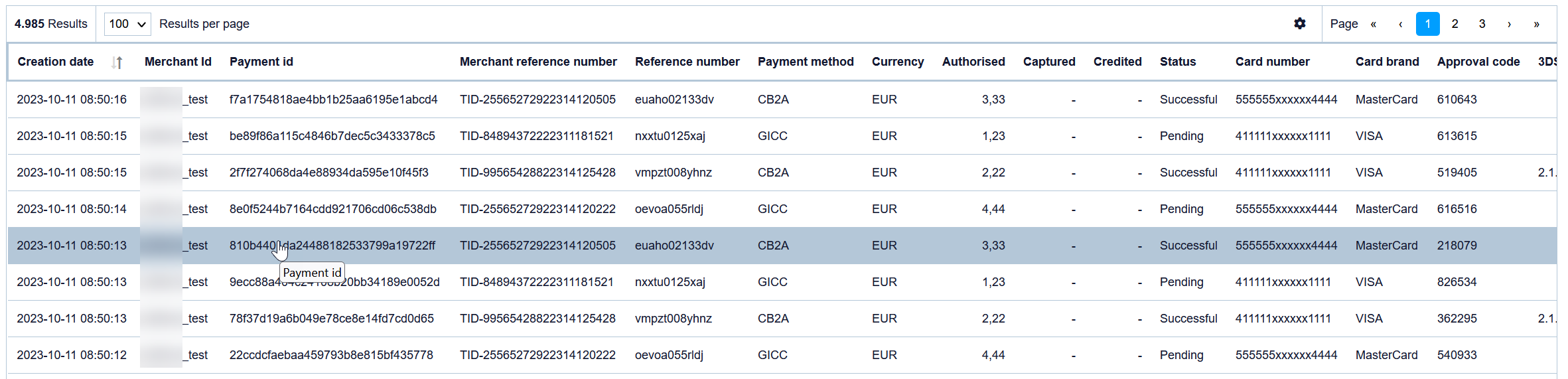
Operation details
After selecting and clicking on a payment row the operation details for this payment will be displayed in a new tab / window like this:
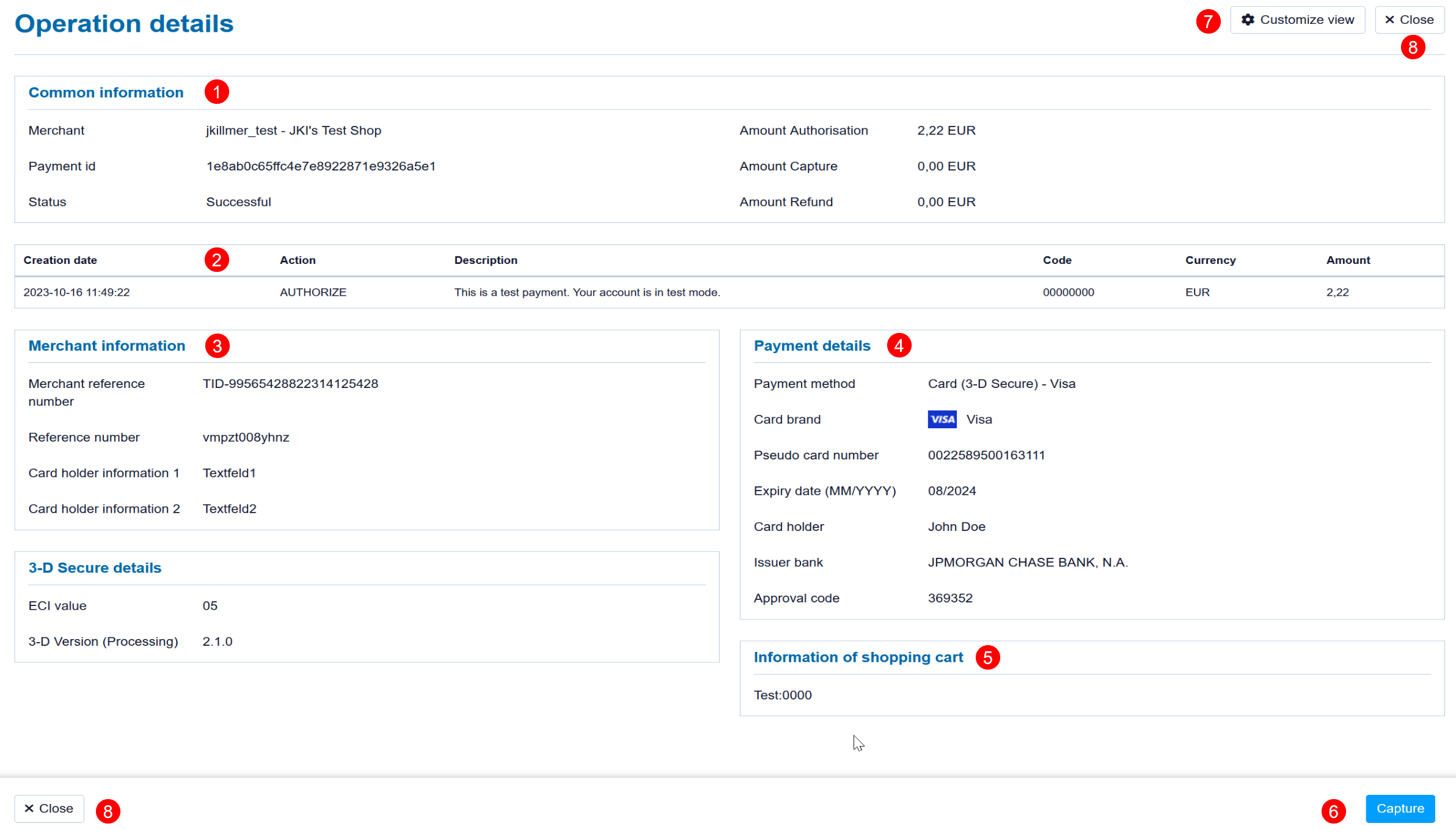

Payment details overview
This view provides a detailed breakdown of all relevant information for a specific payment. The information is organized into several sections:
1. Common information
This section includes general details about the payment, such as:
Merchant name
Payment IDMultiexcerpt include SpaceWithExcerpt EN MultiExcerptName Platform-Kurz PageWithExcerpt Wording Payment status
Authorized, captured and refunded amounts
2. Transaction list
Here you'll find a list of all transactions related to this payment, including:
Date and time of each transaction
Type of transaction (e.g., Authenticate, Authorize, Capture, Refund)
Transaction description
Response code
Currency
Transaction amount
3. Merchant information
This section displays merchant-specific details associated with the payment, such as:
Reference number
Merchant reference number
Cardholder information text
(Additional fields may be available depending on configuration)
4. Payment details
This section contains payment method-specific information:
Credit card payments:
Card brand
Masked card number
Expiration date
Approval code
Direct debit payments:
IBAN
Bank name
5. Shopping cart information
Displays the shopping cart data provided for this payment.
6. Further actions
Quick access to commonly used actions such as:
Refund
Capture
Cancel
Delete person-related information (if applicable)
Available actions depend on your merchant setup and your individual user permissions.
Customizing the view
All information is grouped into modular blocks.
The "Common information" block is always visible as it contains essential internal data.
Transaction details can be shown or hidden based on your preference.
Other blocks can be moved between the left and right columns to suit your layout needs.
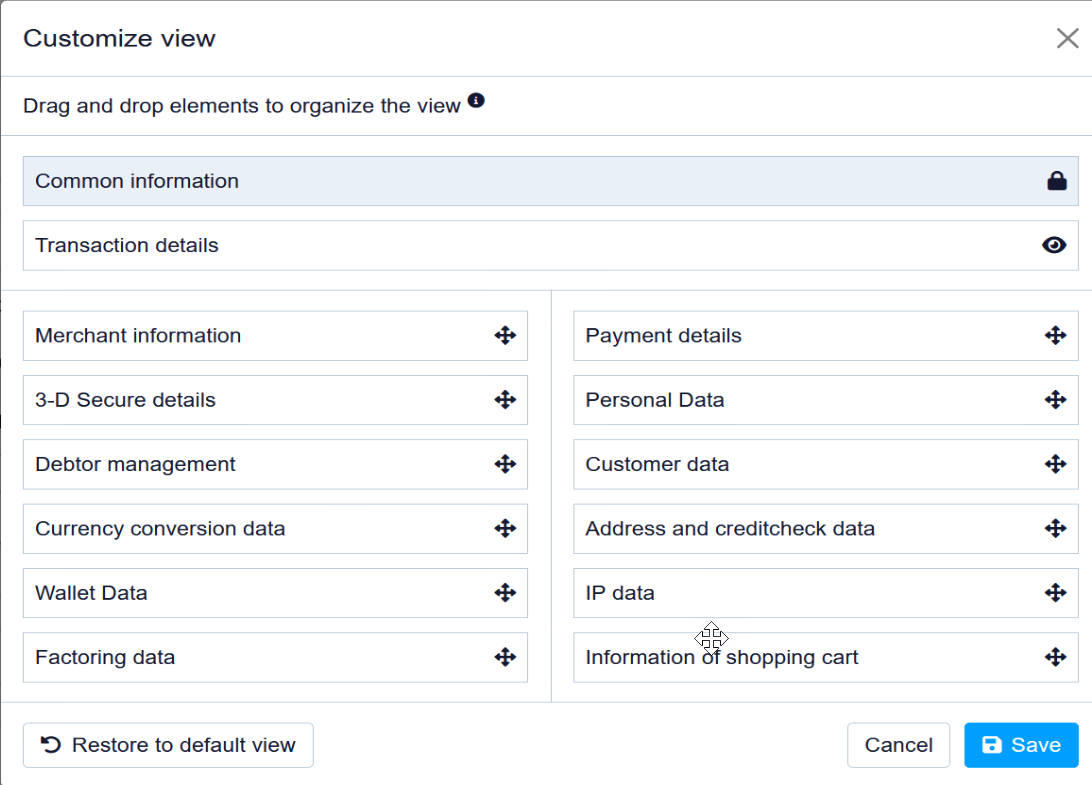
After you've finished your new view can be saved for future payment operations.
Close this window
As these details are opened in a new tab / new window, you may close this window here – or just close the tab via browser-feature.
| Multiexcerpt include | ||||||||
|---|---|---|---|---|---|---|---|---|
|
| Linchpin Teaser | ||||||||
|---|---|---|---|---|---|---|---|---|
| ||||||||
On this page
| Table of Contents | ||
|---|---|---|
|
In this section
| Content by Label | ||||||||
|---|---|---|---|---|---|---|---|---|
|